BullMQ incidents,
handled in Slack.
Durabull posts failed jobs, stalled queues and Redis health alerts to the channels your team already watches. Acknowledge, resolve, snooze and retry from the message, and ask about any queue or job with /durabull.
Team plan and up · 14-day free trial · self-hosted included
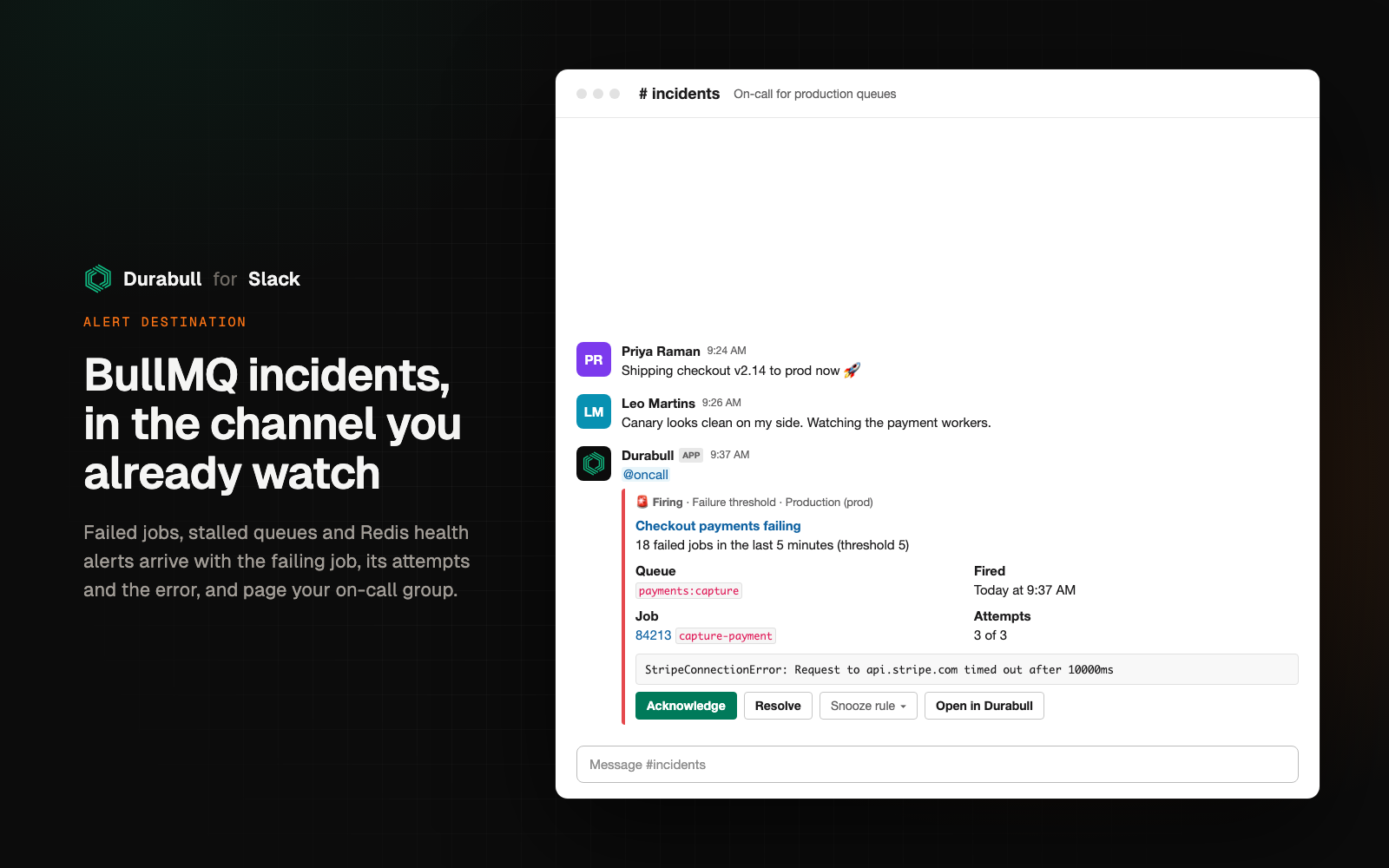
One-click response
Respond without opening another tab.
Acknowledge, resolve, snooze the rule for 30 minutes to 7 days, or retry the failed job, right from the alert. Each action runs as the matching Durabull member.
- Messages turn amber when acknowledged and green when resolved
- A thread reply records who did what, from Slack, the web app or MCP
- Optional @here, @channel or @oncall user-group mentions
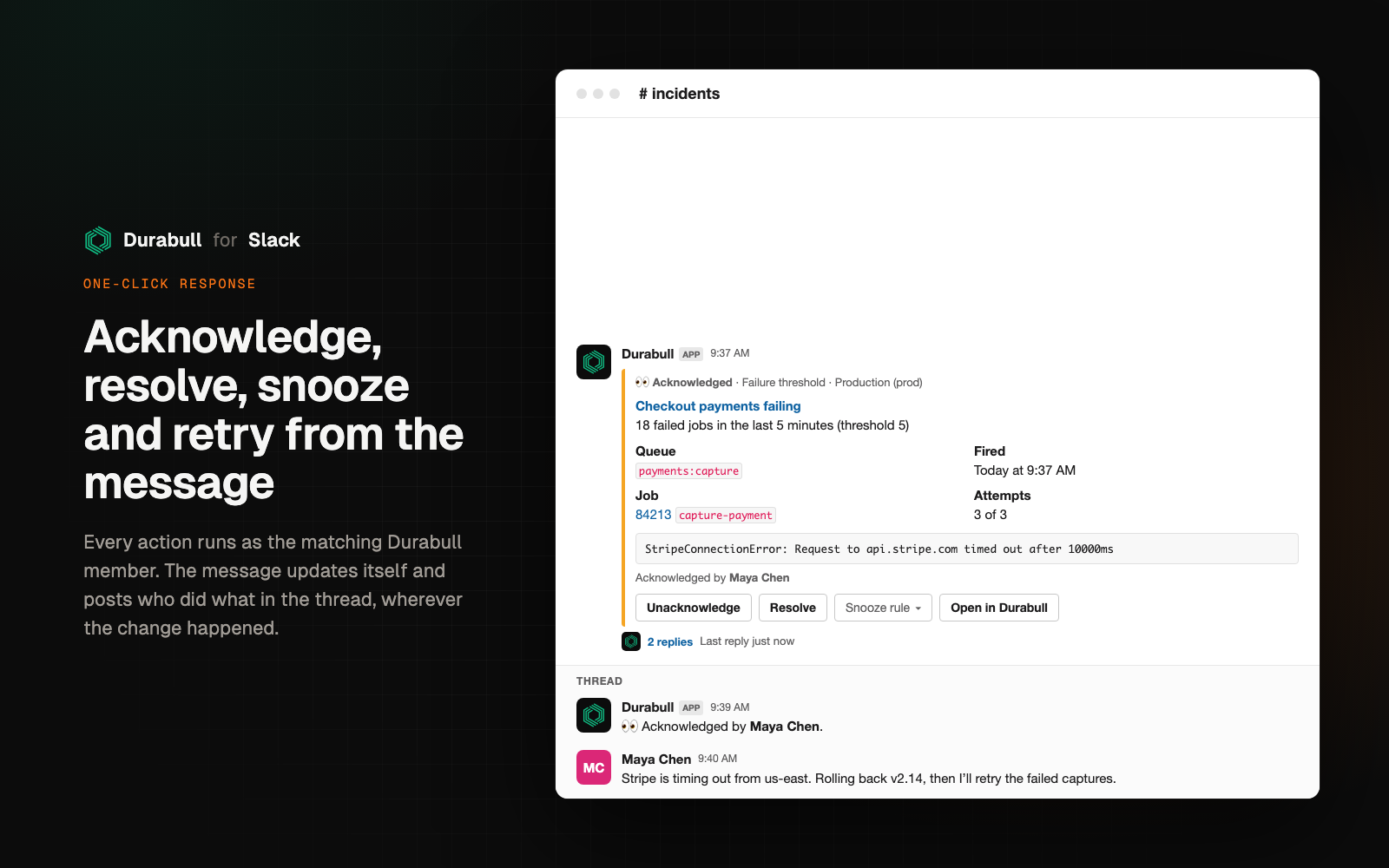
/durabull and @Durabull
Ask about any queue, incident or job.
status, alerts, queue <name> and job <id> answer privately with /durabull, in a thread when you mention @Durabull, or in a direct message.
- Live waiting, active, delayed, failed and completed counts
- Pause or resume a queue from the answer
- Plain questions work: "@Durabull what alerts are open?"
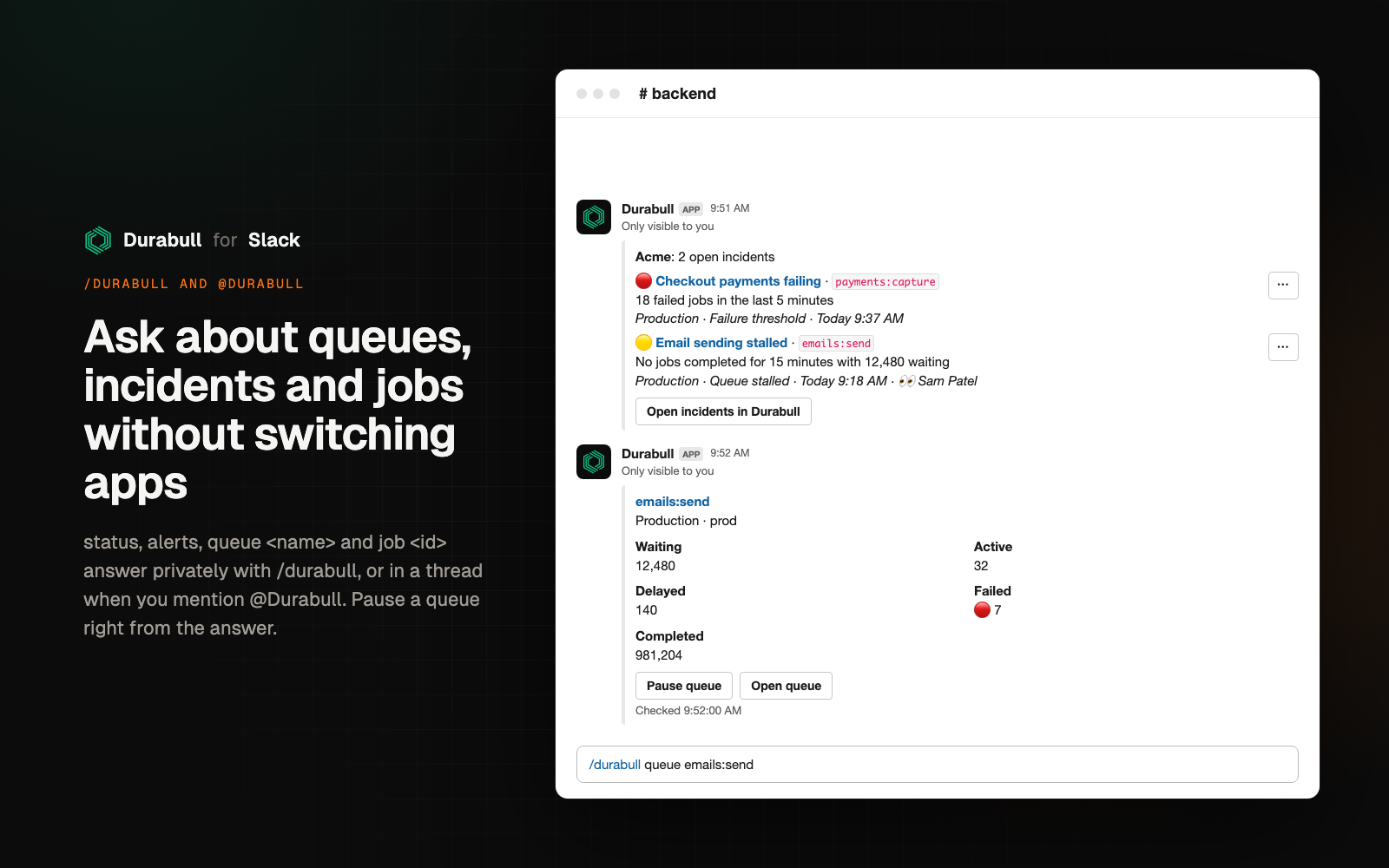
App Home and link previews
Health at a glance, wherever you are in Slack.
The Durabull Home tab shows open incidents for every Redis connection with quick actions. Durabull queue, job and alert-rule links pasted in Slack unfurl with live status for members.
- Per-connection firing and acknowledged counts
- Previews are read-only and shown only to organization members
- Admins can turn previews and actions off
Set up in two minutes
From install to first alert.
01
Add to Slack
Sign in to Durabull as an organization owner or admin and approve the app for your workspace.
02
Pick a channel
Create a Slack destination for any public channel, or a private one after /invite @Durabull.
03
Route your alert rules
Add the destination to an alert rule, send a test message, and try /durabull status.
Security
Built for production on-call.
Only organization owners and admins can connect or change Slack. Read how Durabull handles Slack data in the privacy policy and the permissions it requests.
Verified requests
Every request from Slack is checked against the app’s signing secret and rejected after five minutes.
Members only
Actions and link previews only work for Slack users who match a member of your Durabull organization.
Encrypted tokens
The bot token is encrypted at rest, never returned by the API, and revoked when you disconnect.
No job payloads
Messages carry rule, queue and failure details. Job data never leaves Durabull.
FAQ and support
Questions about the Slack app
Need help? Email hello@durabull.io or contact us. No account needed. The setup guide covers every option.
The Slack app is included with Durabull Cloud on the Team plan ($9/month per organization) and above, and with every self-hosted deployment. New organizations can try it with a 14-day Business trial, no payment method required.
Durabull matches the Slack user to a member of your Durabull organization by their verified email, and performs the action as that member. People who are not members, Slack Connect guests from other organizations and paused seats are refused with a message only they can see. Admins can turn off actions from Slack entirely.
Alert messages contain the rule name, connection and queue names, the incident summary and, for failed jobs, the job id, name, attempts and failure reason. Job payloads are never sent to Slack.
Yes. Durabull posts to public channels without joining them. For a private channel, run /invite @Durabull in the channel first.
Yes. Self-hosted deployments create their own Slack app from a manifest that Durabull generates, so tokens and requests never leave your infrastructure.
An organization owner or admin can select Remove under Settings → Integrations in Durabull, which uninstalls the app and revokes its token. Removing the app from Slack is detected automatically too.
Durabull for Slack
Your next incident can start and end in one thread.

Team plan and up · 14-day free trial · self-hosted included